Section 5: Configure FortiGate routing and firewall policy
Step 5.1: Prepare FortiGate
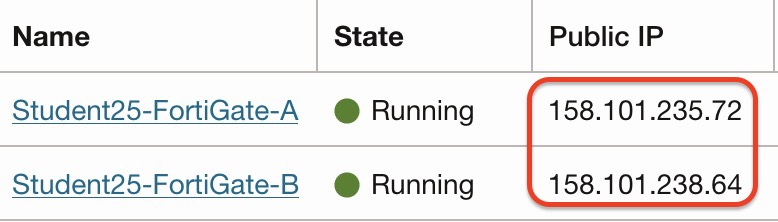
SSH to both cluster members using their public IP addresses.
The SSH login password is the VM's OCID for the first login. You can copy the OCID from the OCI Console. After logging in, set a new password that you can remember.
Step 5.2: FortiGate GUI and static route
Log in to the FortiGate management GUI using the public IP address:
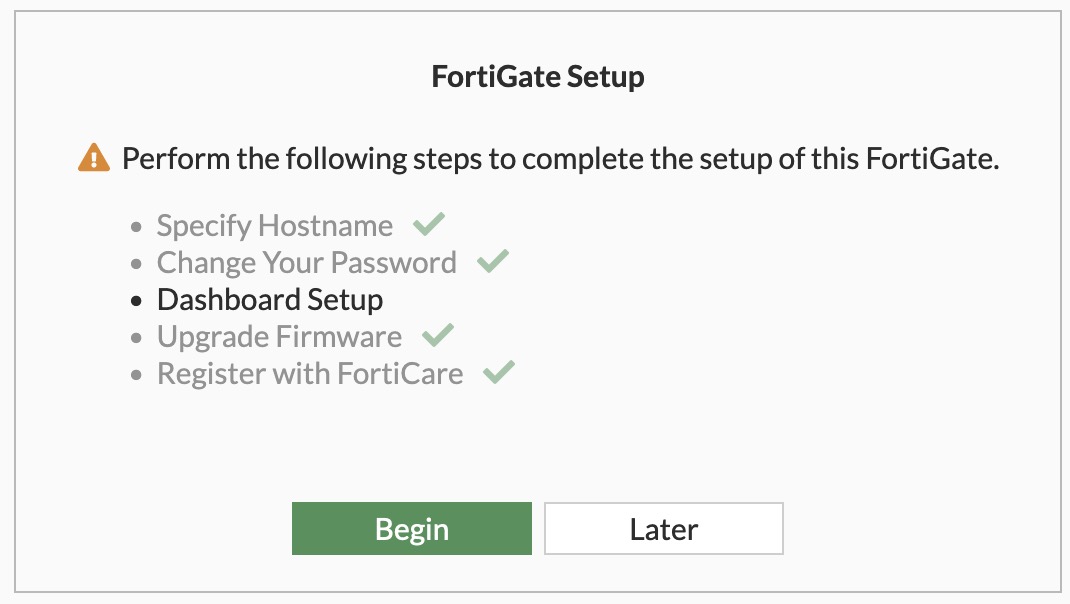
https://<FortiGate-Public-IP>Click Later on the following screen:
We need to add routes for the Spoke VCN CIDRs and use the first IP address of the port2 subnet as the gateway IP. This is required for return traffic.
Navigation path:
Network > Static Routes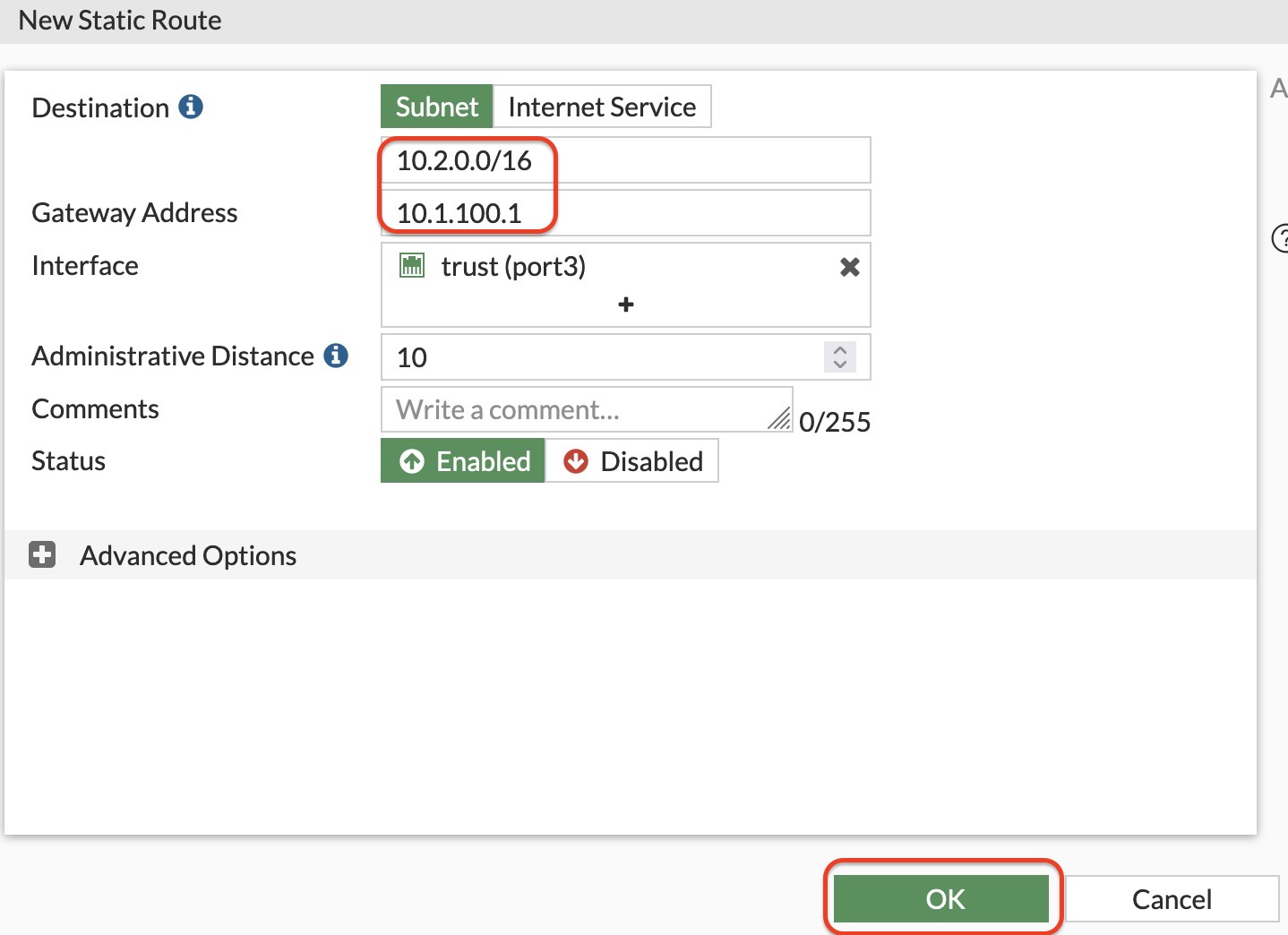
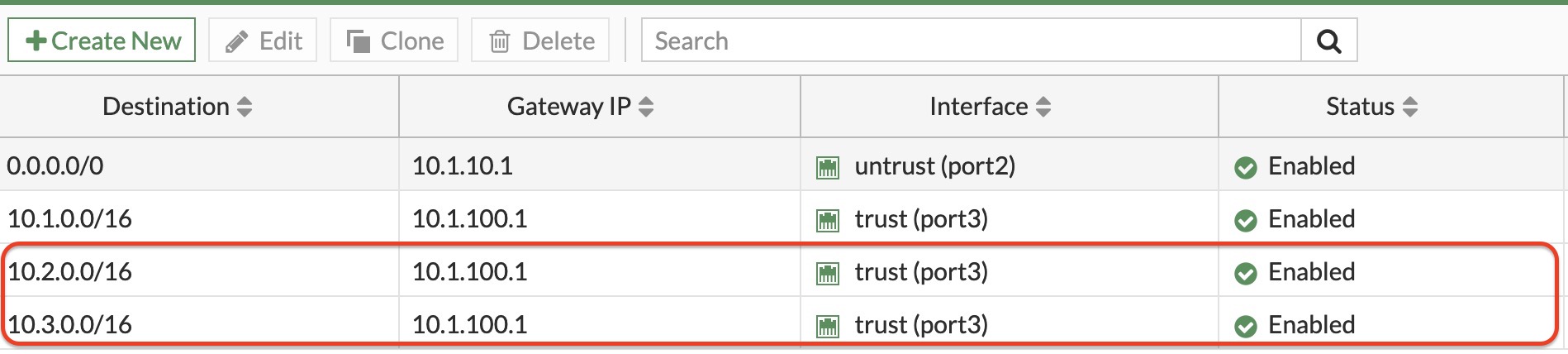
You should see both static routes on the active FortiGate member as shown below:
Step 5.3: Ingress firewall policy
Create a VIP using the Spoke VM private IP address.
The following example shows traffic arriving from outside on TCP port 2244. FortiGate maps this traffic to the SSH port of Spoke1-VM. FortiGate therefore performs destination IP and destination port NAT.
Navigation path:
Policy & Objects > Virtual IPs > Create New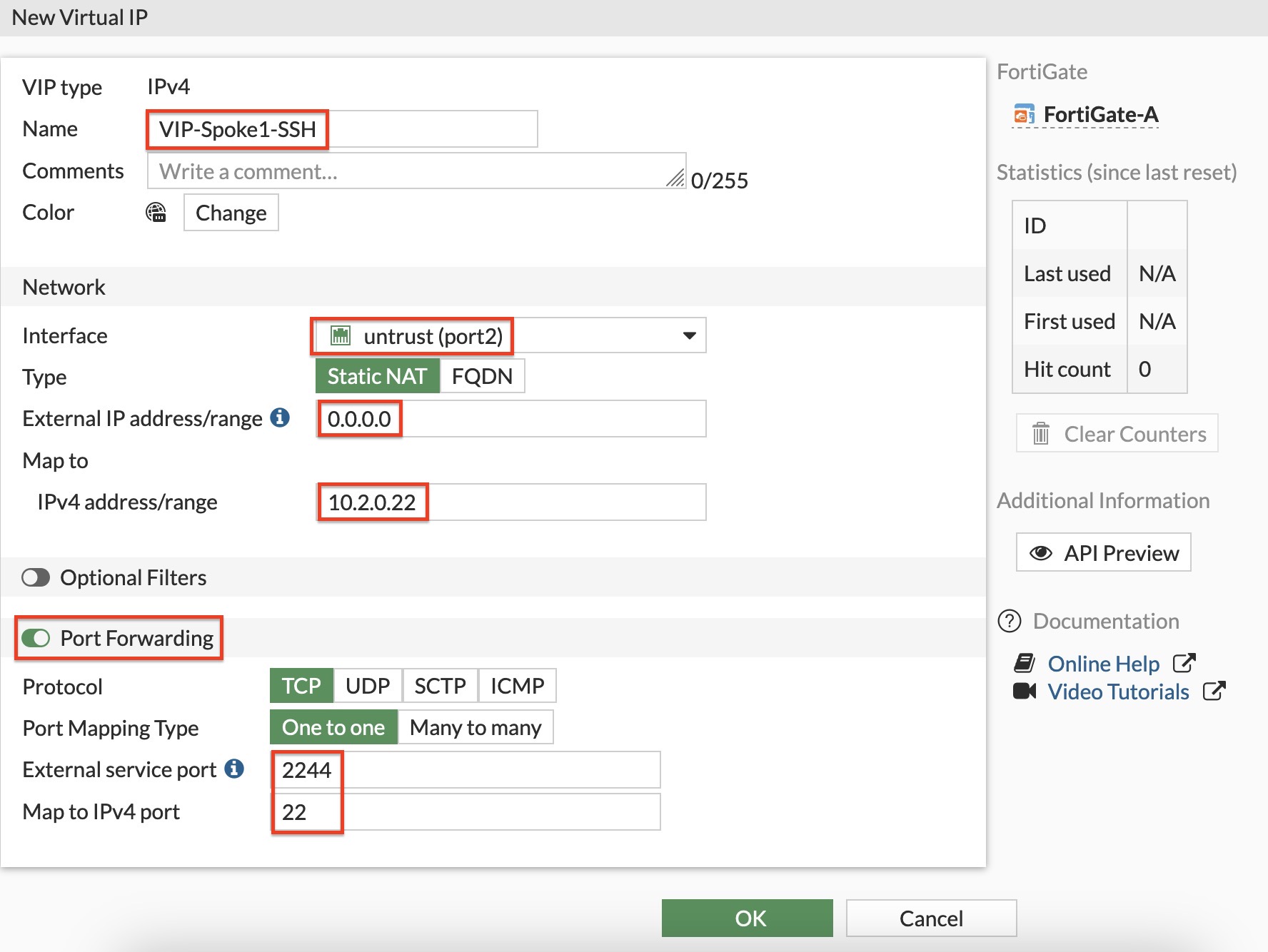
Create another VIP for Spoke2-VM using TCP port 2245.
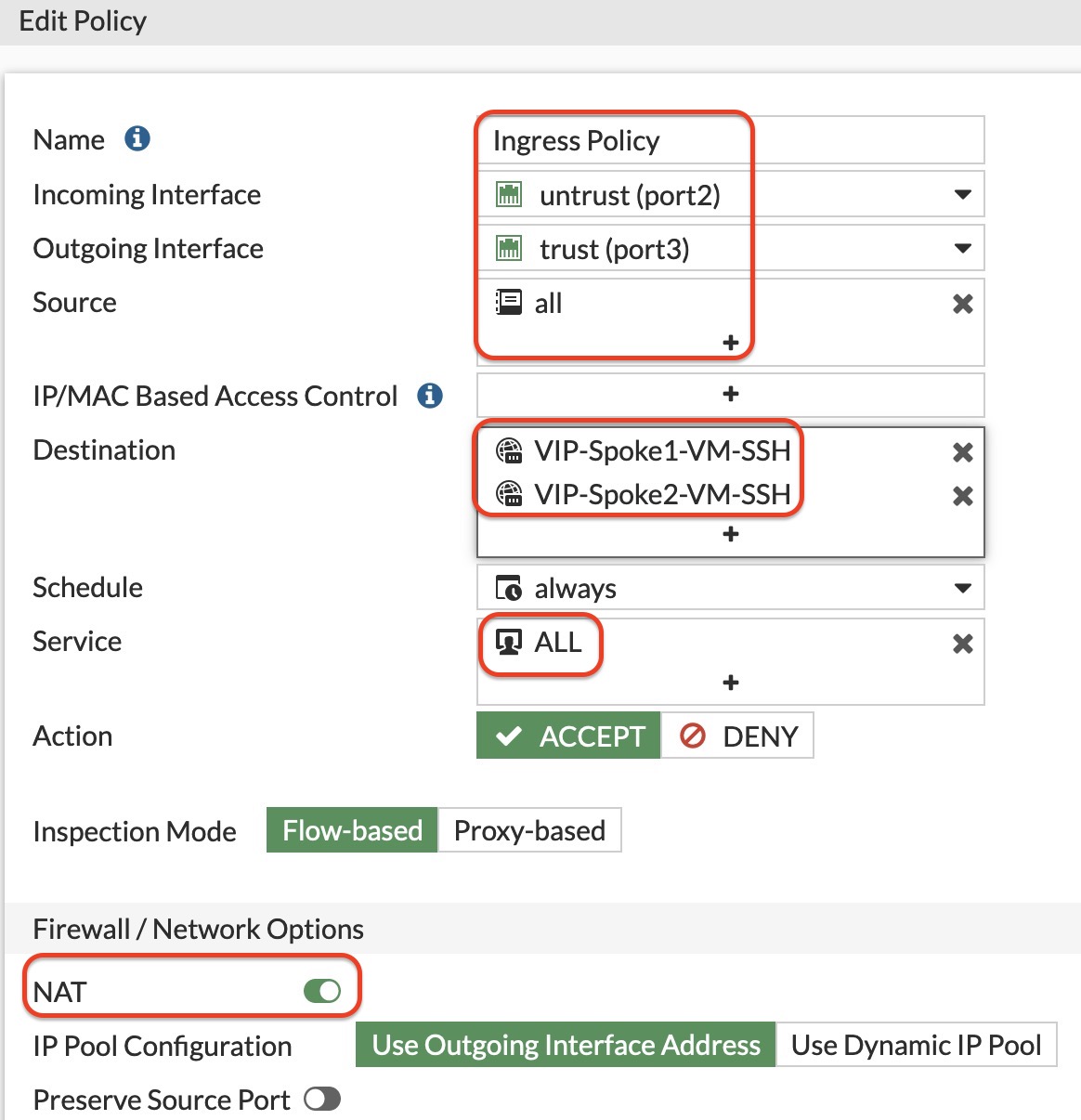
Then create an ingress firewall policy using the VIP objects created above.
For troubleshooting, set Log Allowed Traffic to All Sessions.
Step 5.4: Egress firewall policy
Create host address objects on FortiGate for Spoke1-VM and Spoke2-VM.
Navigation path:
Policy & Objects > Addresses > Create New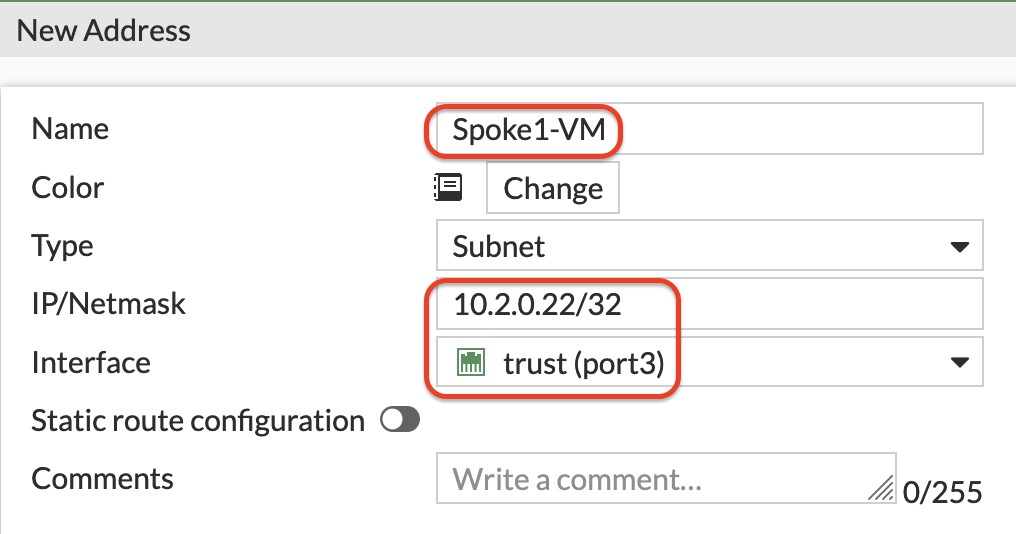
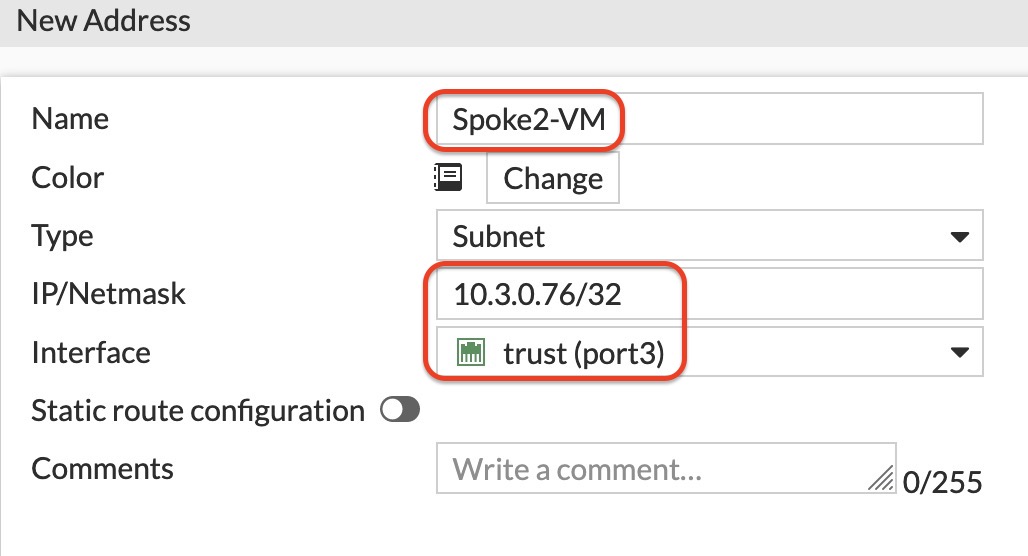
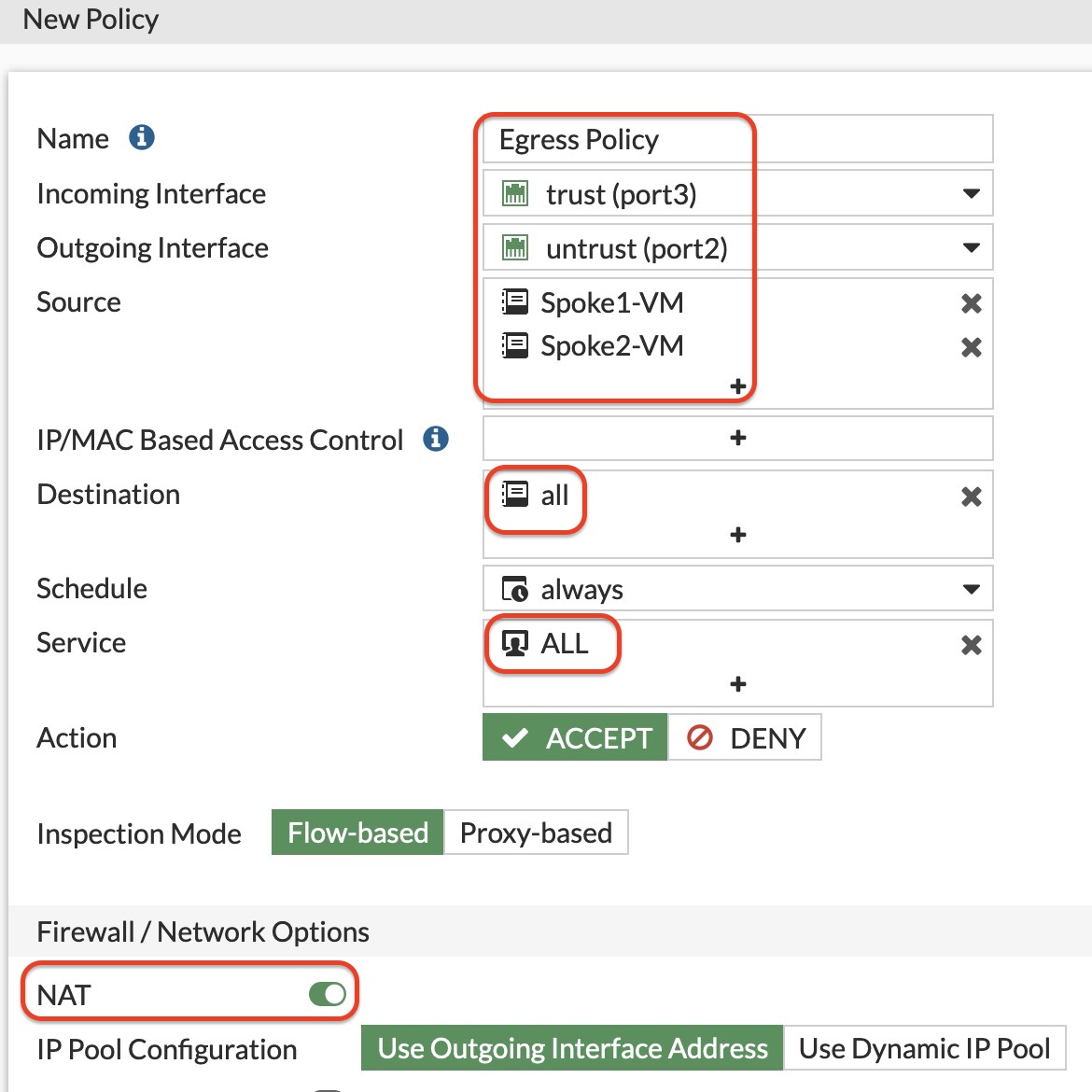
Using these address objects, create an egress firewall policy to allow Internet access from the spoke VMs.
For troubleshooting, set Log Allowed Traffic to All Sessions.
Step 5.5: East-West firewall policy
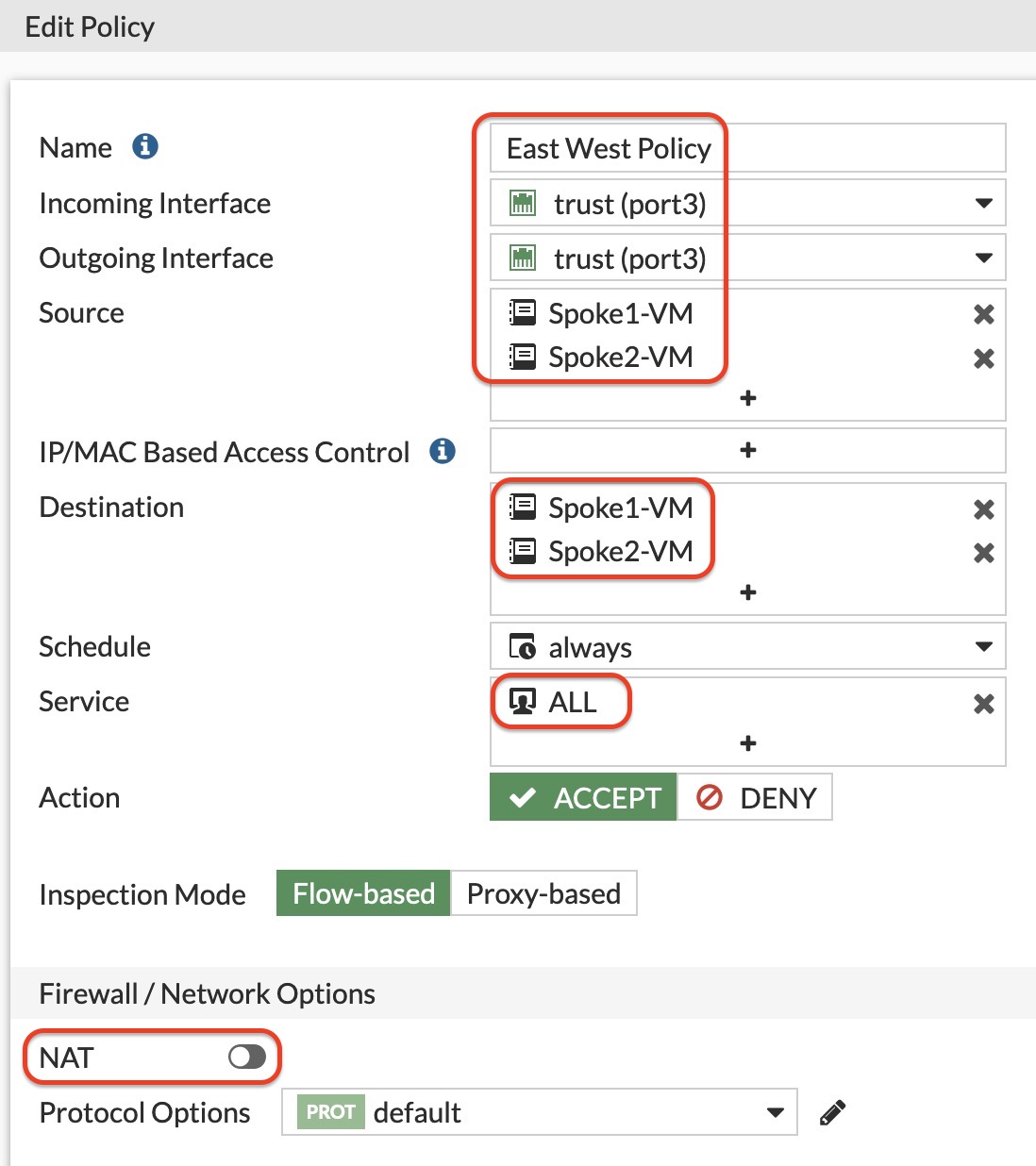
Create a firewall policy to allow traffic between the spoke VMs.
NAT does not need to be enabled for this policy.
Checkpoint
Before continuing, confirm that:
- You can access the FortiGate management GUI.
- Static routes exist for both Spoke VCN CIDRs.
- A VIP exists for Spoke1-VM using TCP port
2244. - A VIP exists for Spoke2-VM using TCP port
2245. - The ingress firewall policy is configured.
- Host address objects exist for both spoke VMs.
- The egress firewall policy is configured.
- The east-west firewall policy is configured.
- NAT is disabled on the east-west firewall policy.